
Input Tools lets you type in the language of your choice.
⭐
4.5
453
reviews
352K
downloads
Google Input Tools provides a friendly and efficient way to type across languages, offering robust IME, transliteration, and virtual keyboard support built into browsers and Google services. The game strikes a great balance between simplicity and utility, making switching among 90+ languages seamless — a helpful asset for anyone navigating the productivity and internet software space.
Google Input Tools continues to deliver personalized, reliable typing experiences across platforms, with features like custom dictionaries and seamless switching. The game remains a strong tool for those needing flexible, multilingual input, blending utility and ease-of-use in an understated but effective manner.
Usage Instructions:
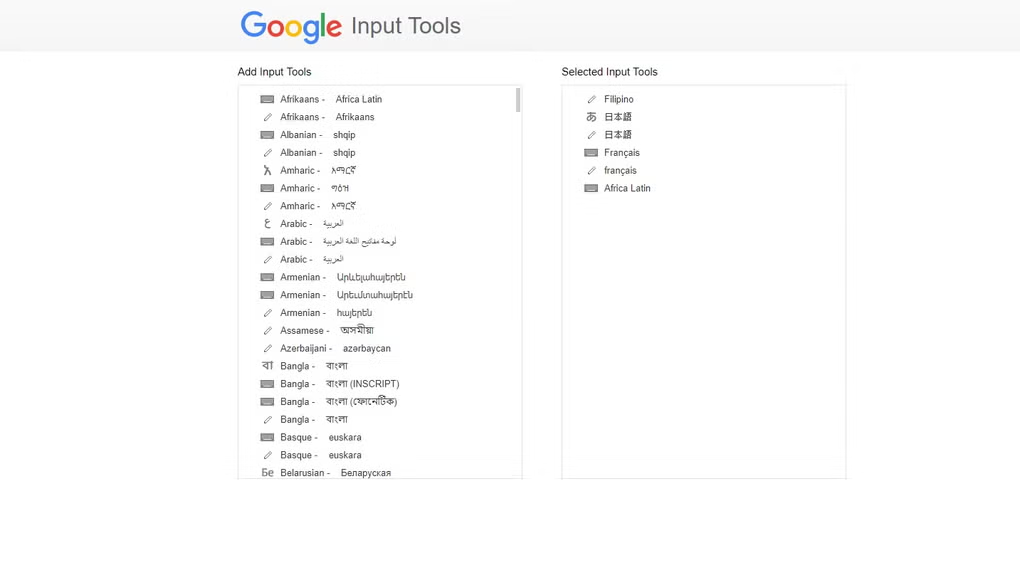
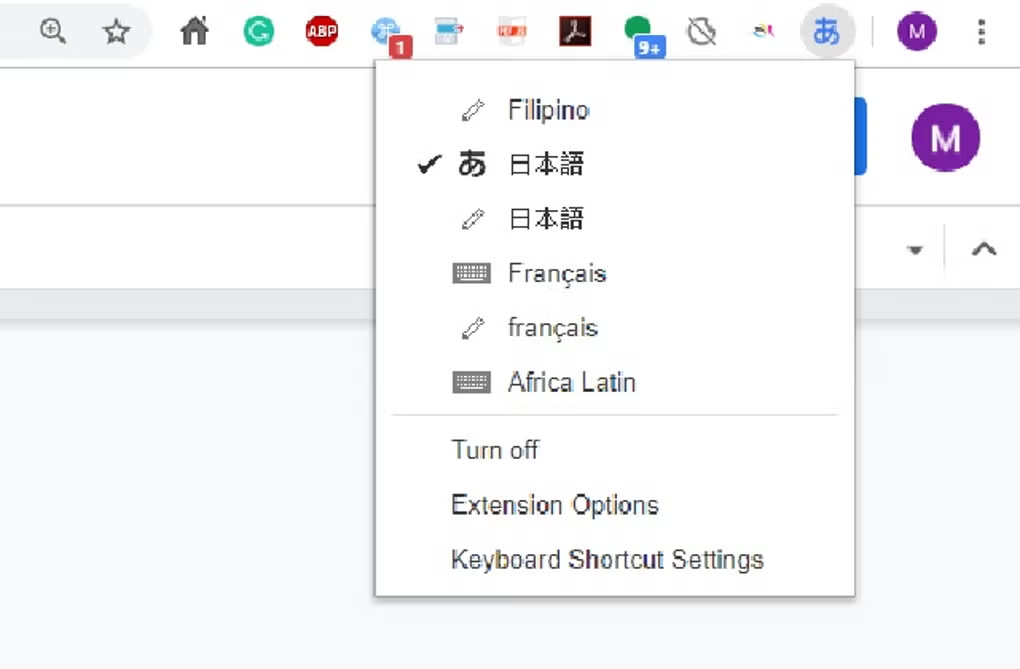
When you first install the extension, click on the extension icon, then select "Extension Options" in the pop-up menu. A new tab will appear where you can select your preferred languages or input methods. The keyboards, IMEs or handwriting input you add to 'Selected input tools' can be enabled at any time from the extension itself. You can always return to this options page to add, remove, or change the order of your input tools.
input tool, simply click on the extension icon, select the desired language tool in the pop-up menu, then click on any text box on the web page. To turn off an input tool, click on the extension icon and select the "Turn Off" option.
To use transliteration, type languages phonetically in English letters, and they'll appear in their correct alphabet. Keep in mind that transliteration is different from translation; the sound of the words is converted from one alphabet to the other, not the meaning. For example, to get in नमस्ते with Hindi transliteration, type in n-a-m-a-s-t-e. You will get a list of Hindi words sound like namaste. Then, press SPACE to select the first suggestion नमस्ते.
Latin IMEs are to help people type in Latin-script languages using the US keyboard. Features include automatic diacritics, spell correction, and prefix completion. To use Latin IMEs, type unaccented letters, and they will be corrected to a desired word. For example, type "franca" in French IME, "français" appears, and it can be committed by pressing TAB. If continuously typing "francais", "français" will be committed by
pressing SPACE. To get all the candidates for "francais", press BACKSPACE.
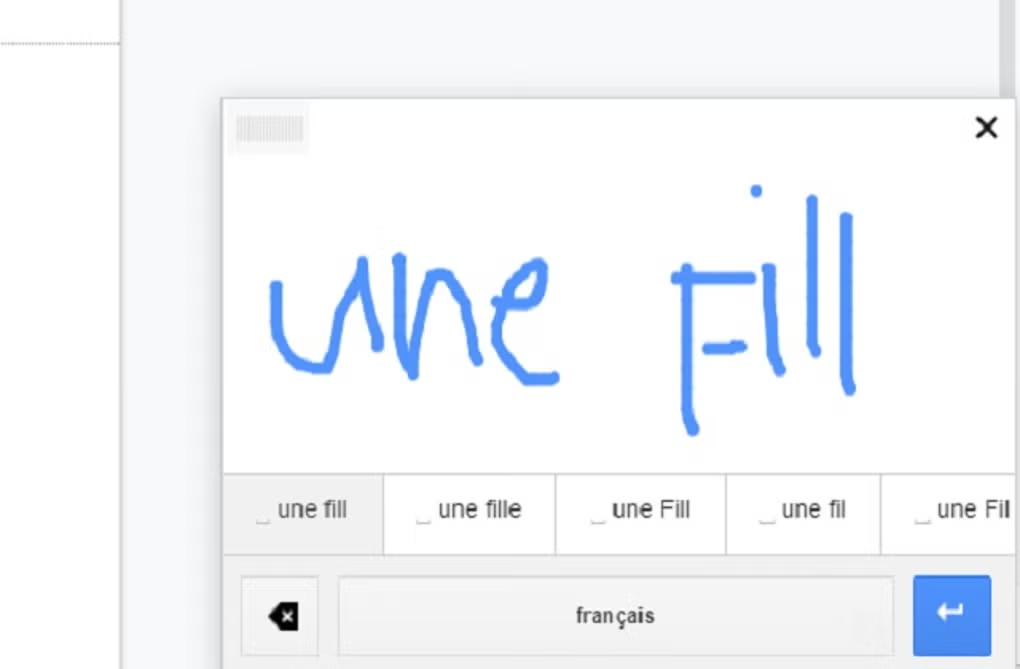
To use handwriting input, select the handwriting input of your desired language. Press trackpad or left click of mouse to hand draw a character on the pop-up handwriting panel. Select the character from the suggestion list, or simply press ENTER or SPACE key to select the first suggestion.
How to use Google Input tool (Keyboard Shortcuts:)
✓ ALT+SHIFT+N - Switch to next input tool in the list (if the extension is off, turn it on; if the current input tool is the last tool in the list, turn the extension off)
✓ ALT+SHIFT+R - Revert to the last input tool used (if none, turn off the extension)
✓ ALT+SHIFT+T Toggle the current input tool.
✓ SHIFT - Toggle between En/Cn state (Chinese input tools only)
✓ SHIFT+SPACE - Toggle the SBC/DBC mode (Chinese input tools only)
✓ CTRL+PERIOD - Toggle Chinese / European language punctuation (Chinese input tools only)
Limitations:
Due to security features of Google Chrome, the Google Input Tools extension will not assist with input in the address bar (omnibox), on the Chrome Web Store, or inside of other Chrome extensions. It does not currently assist with input inside of Flash applications.
Additional Information

License
Free

Version
11.3.0.0

Update
Sep 04, 2025

Size
2 MB

Requires
Windows 11, 10, 8.1 PC

Developer

Downloads
352K